
Operations Control Center Dashboard
Use the Operations Control Center for a status-based view of rounds, Issues, and Actions across the selected plant and User Group. It helps you spot delays and workload problems quickly.
Built-in filters refine the data by Plant, Sort By options (such as Due Date), and time ranges: Today, Yesterday, 7 Days, 30 Days, 3 Months, 6 Months, or a Custom period.
The User Group filter is available only if User Groups are configured for your organization, and you can select one User Group at a time. Selecting a User Group updates the Rounds, Issues, and Actions boards and their status counts to show only that group's data. If no User Group is selected, OCC displays data for all groups.
You can also create records with the Create Ad Hoc Round, Create Issue, or Create Action options.
Access the Operations Control Center
- Click the Hamburger menu at the top left of the screen.
- Click the Operations Control Center module.
- Choose between Rounds, Issues, or Actions to review operational performance.
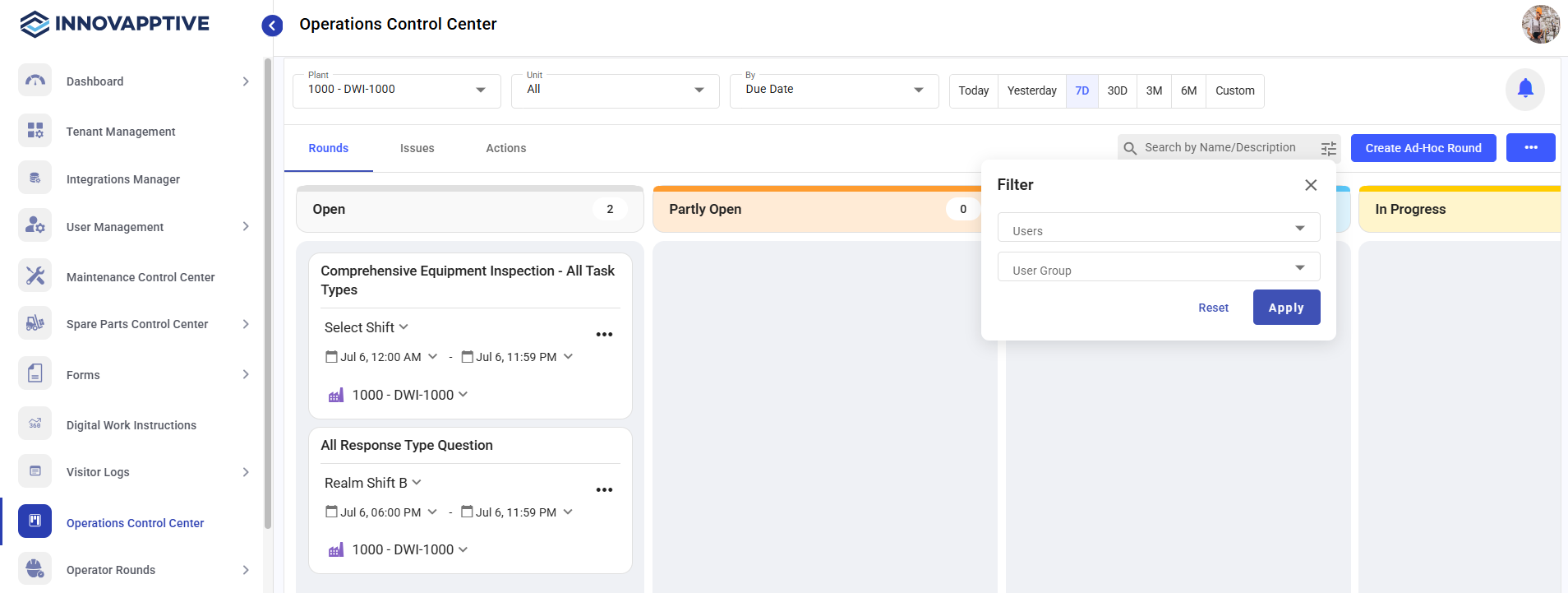
The module is organized into three tabs: Rounds, Issues, and Actions.
Rounds Tab
The Rounds tab displays all planned and ad hoc rounds on a status board, so you can track round progress and quickly identify overdue or skipped tasks.
- Open – Rounds that are assigned but not yet started.
- Partly Open – Rounds that have some checkpoints completed.
- Assigned – Rounds assigned to specific Operators.
- In Progress – Rounds currently being executed.
- Submitted – Rounds completed and submitted.
- Pending Approval – Rounds awaiting Supervisor review.
- Closed – Fully approved and closed rounds.
- Overdue – Rounds not submitted by the due time.
- Skipped – Rounds intentionally skipped or not executed.
Each card shows:
- Round Name
- Shift
- Scheduled time
- Assigned Operator
- Progress (%)
- Related functional location or unit
Click any card to view the full round details or to update action items.
Issues Tab
The Issues tab shows Issues grouped by status, so you can see which ones are critical and decide what to work on first.
Issues appear under the following columns:
- Open – Newly created Issues that require action.
- In Progress – Issues currently being investigated or resolved.
- Resolved – Issues that have been fixed and await closure.
Each Issue card displays:
- Issue name
- Priority (Emergency, High, Medium, Low)
- Issue type (Hazard, Incident, Maintenance, etc.)
- Functional location / equipment
- Created and due timestamps
- Assigned user
- Action button to assign or reassign the Issue
Actions Tab
The Actions tab displays all corrective and follow-up Actions grouped by status, so you can manage them in one place.
Actions are displayed under the following columns:
- Open – Actions that are created but not yet started.
- In Progress – Actions that are actively being worked on.
- Resolved – Actions completed by the responsible user.
- Action name
- Priority level
- Functional location
- Created timestamp
- Assigned user
- Option to assign or update the Action.
Open the affected card for detail, then continue to Investigate Rounds That Need Attention.