
Rounds Notification Workflow
Create a workflow that emails selected recipients whenever a round is submitted, so they are informed immediately without logging in to check.
A notification workflow sets what mRounds sends when a round is submitted. It is separate from approving a round plan; for approval, see Round Plans Approval Workflow.
-
Expand Workflows and select My
Workflows.
My Workflows lists the predefined workflows.
Figure 1. My Workflows 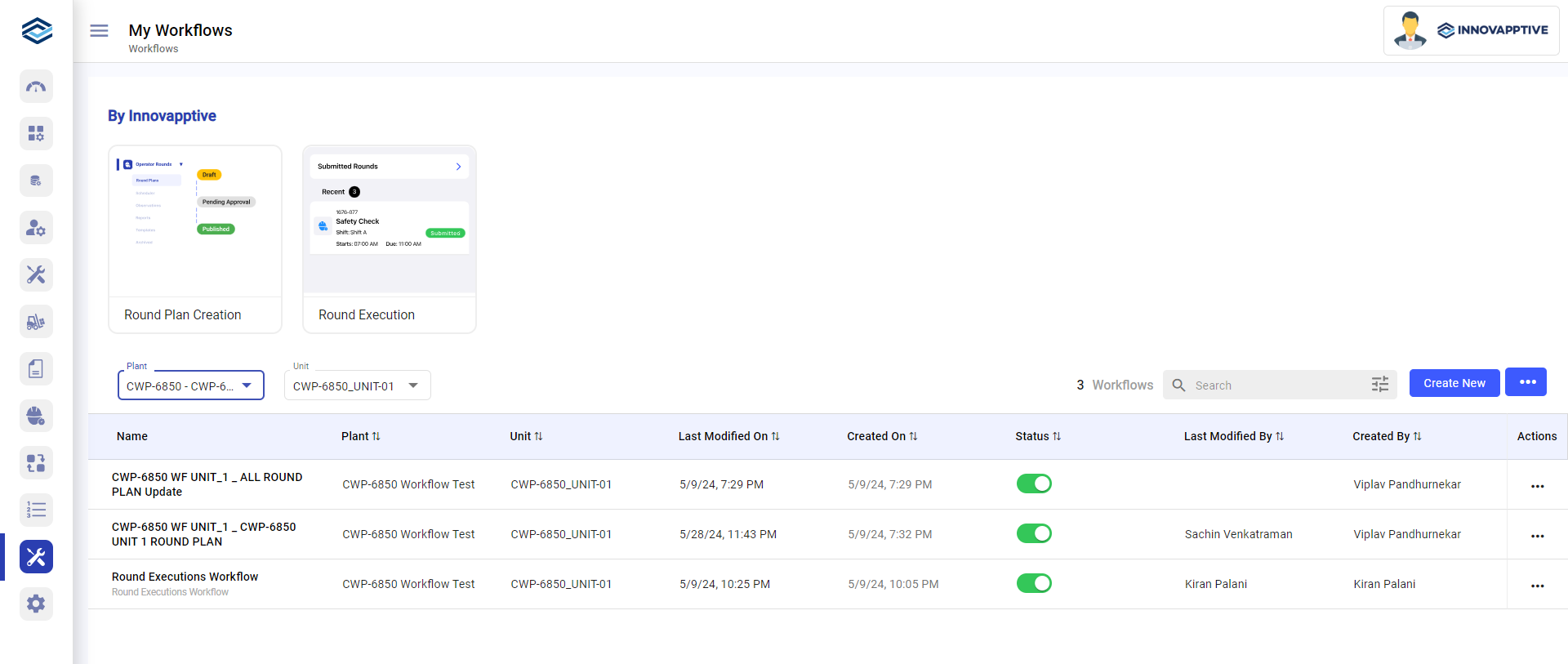
-
Click Create New on the right side in the Workflow
Details screen.
Figure 2. Workflow Details Screen 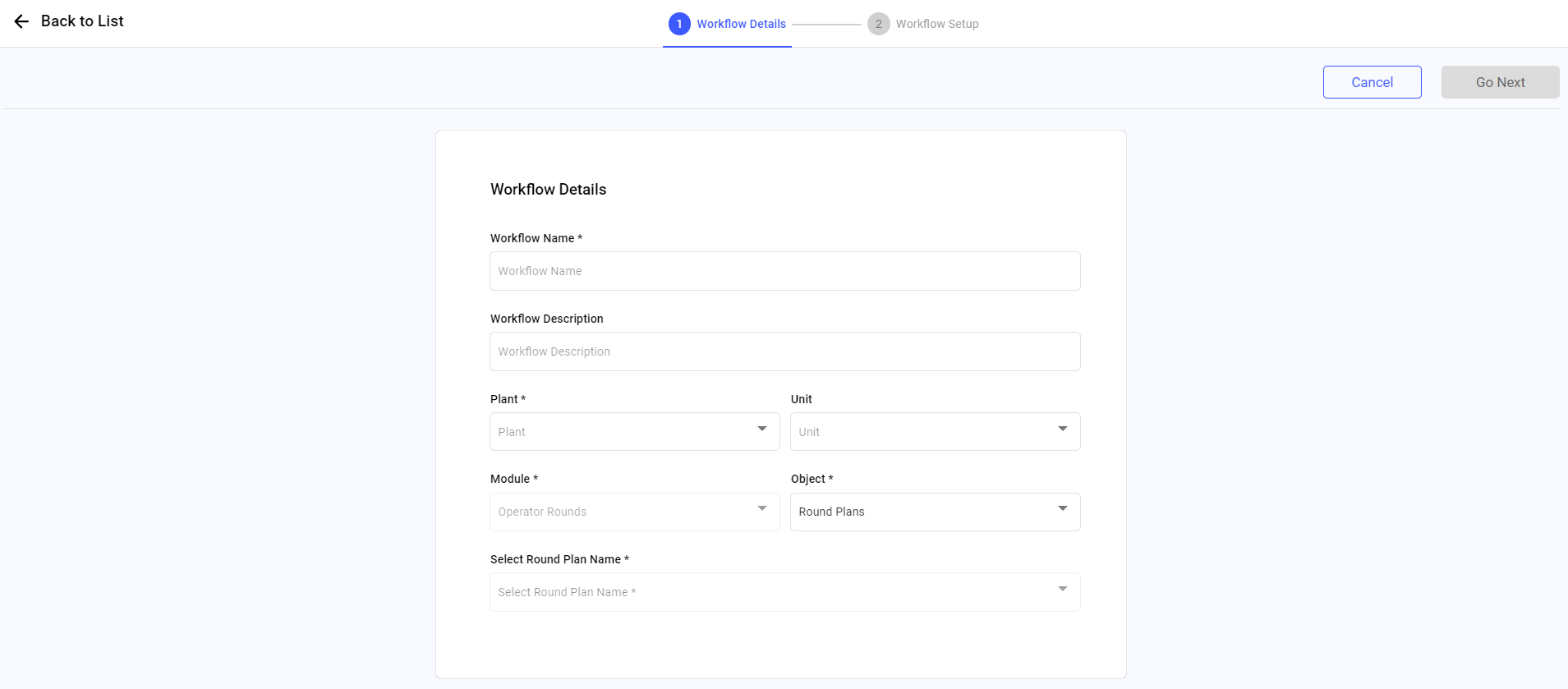
-
Click Save & Activate.
Figure 3. Rounds Notification Workflow 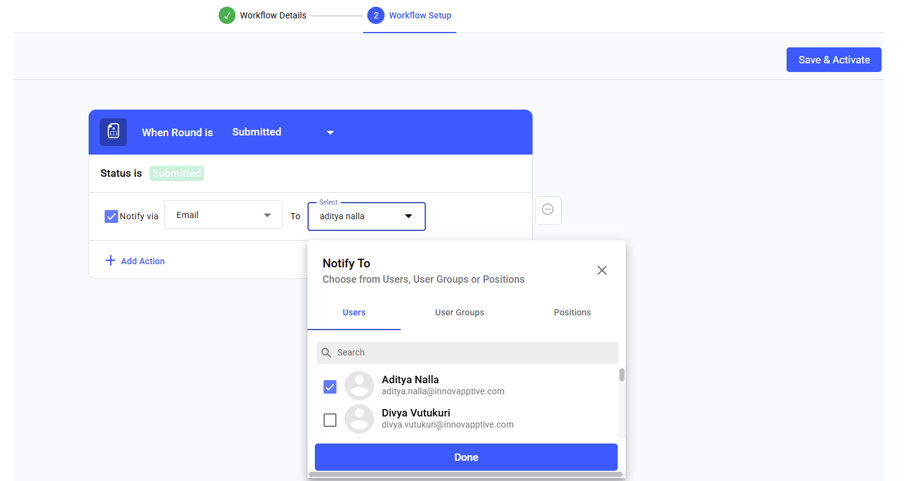
- Recipients can open the round from the email link (if they have access) or download it as a PDF.