
Log in for the First Time
Use the standard sign-in method the first time you open mRounds. The setup also creates your passcode and, when enabled, quick biometric access.
Have your company or domain name and sign-in credentials ready.
To log in for the first time:
-
In the Sign In screen, enter your
Username.
Figure 1. Enter Username 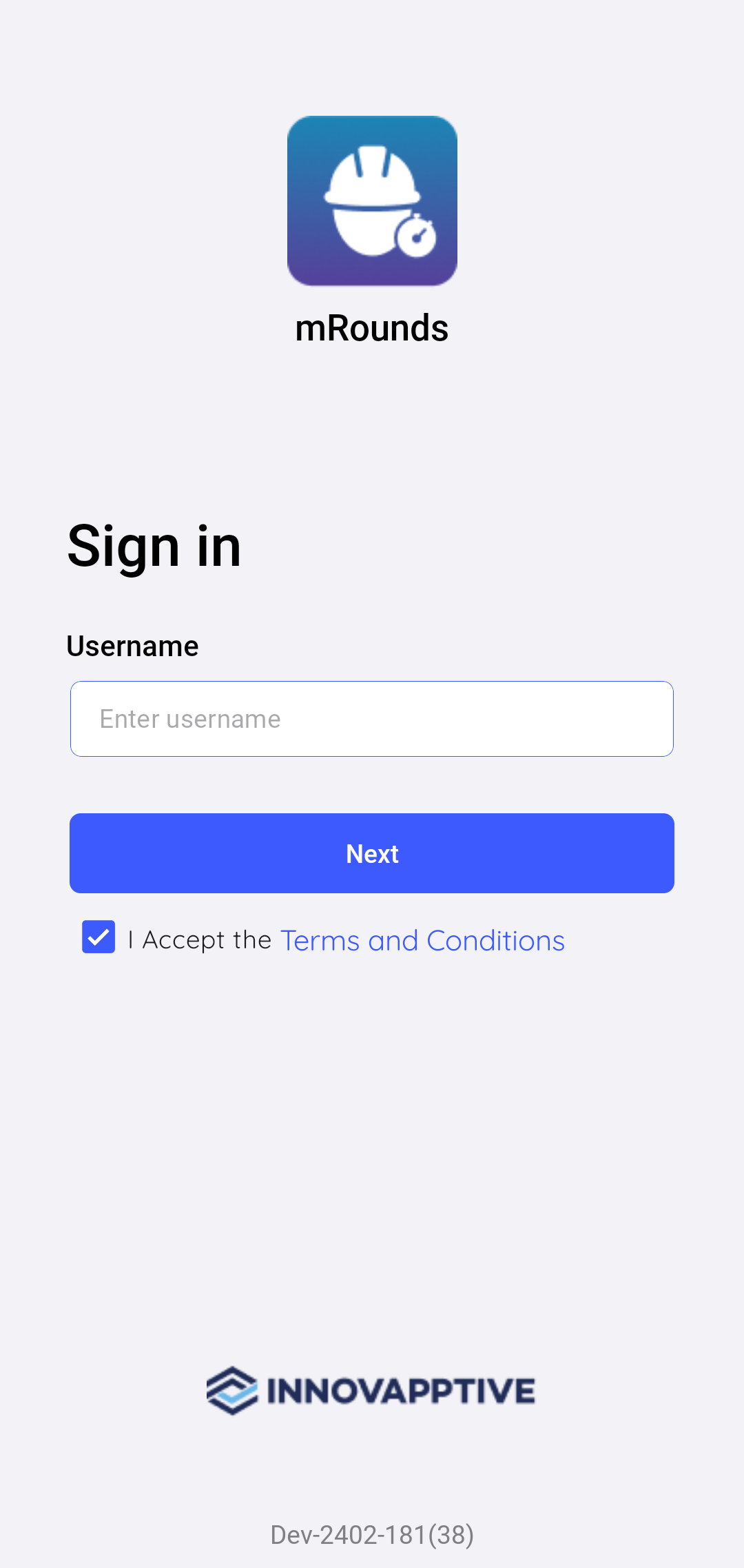
-
Tap Terms and Conditions to read End-User License
Agreement (EULA) of Service.
Figure 2. Terms and Conditions 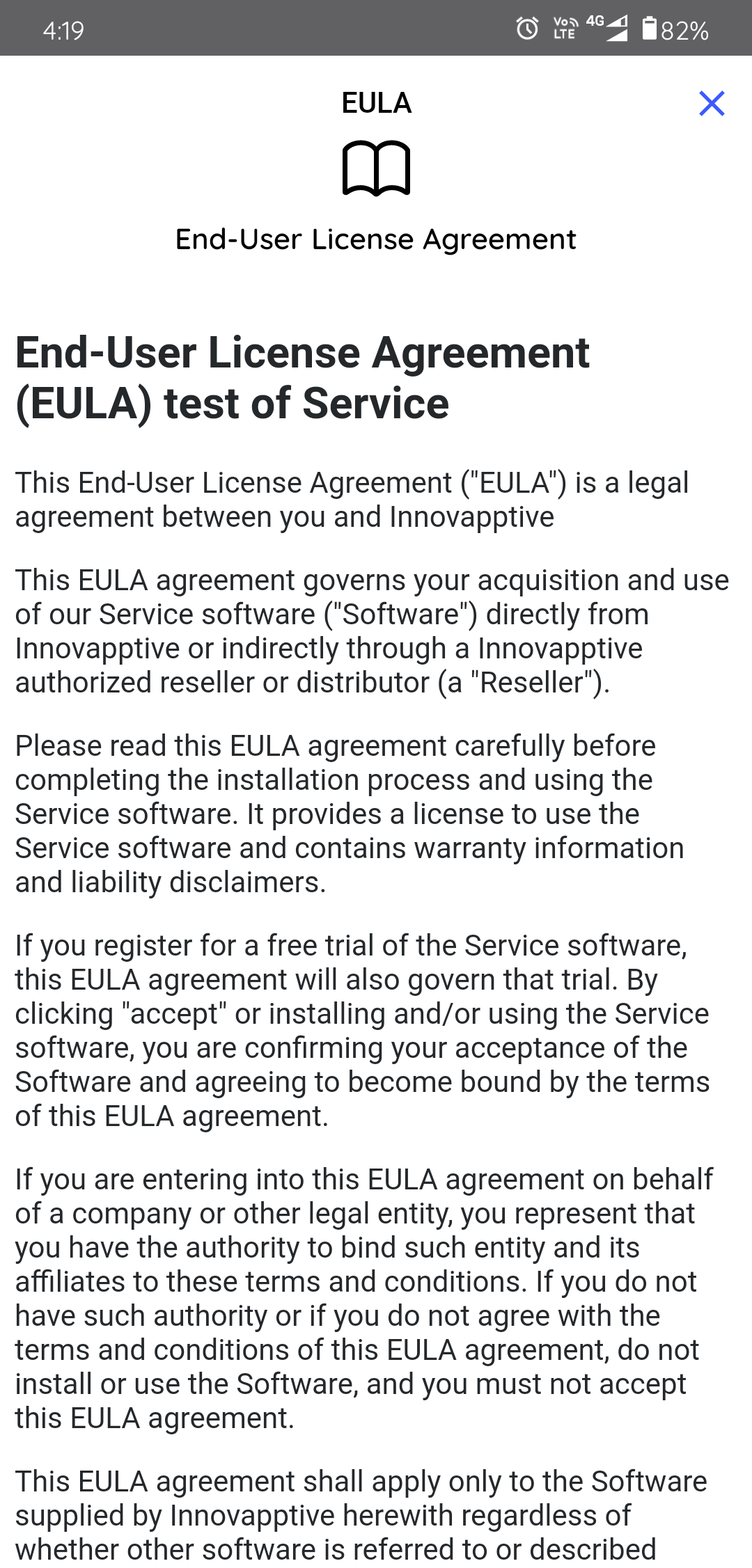
-
Tap Next.
Figure 3. Enter Password 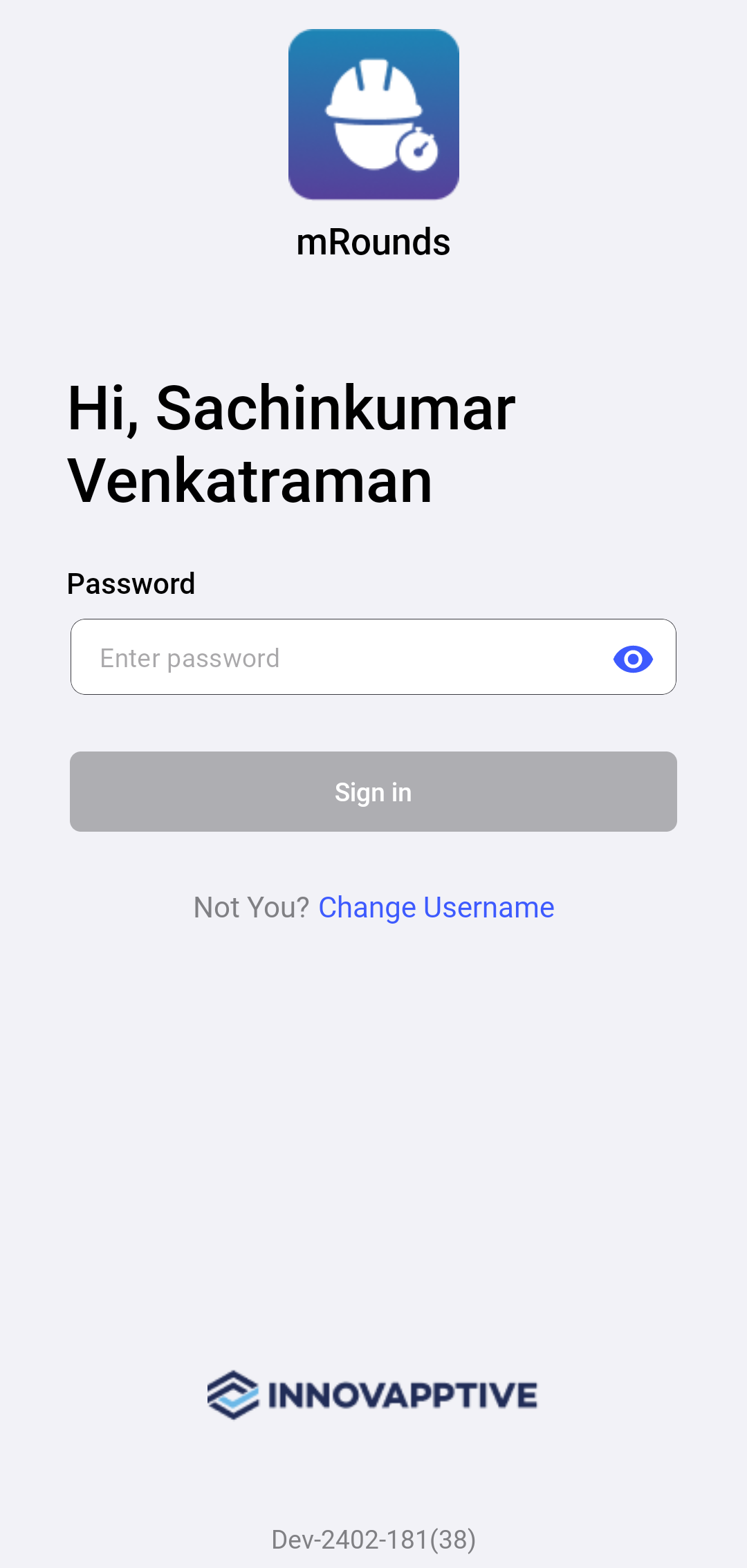
-
Tap Sign In.
Figure 4. Create Passcode Screen 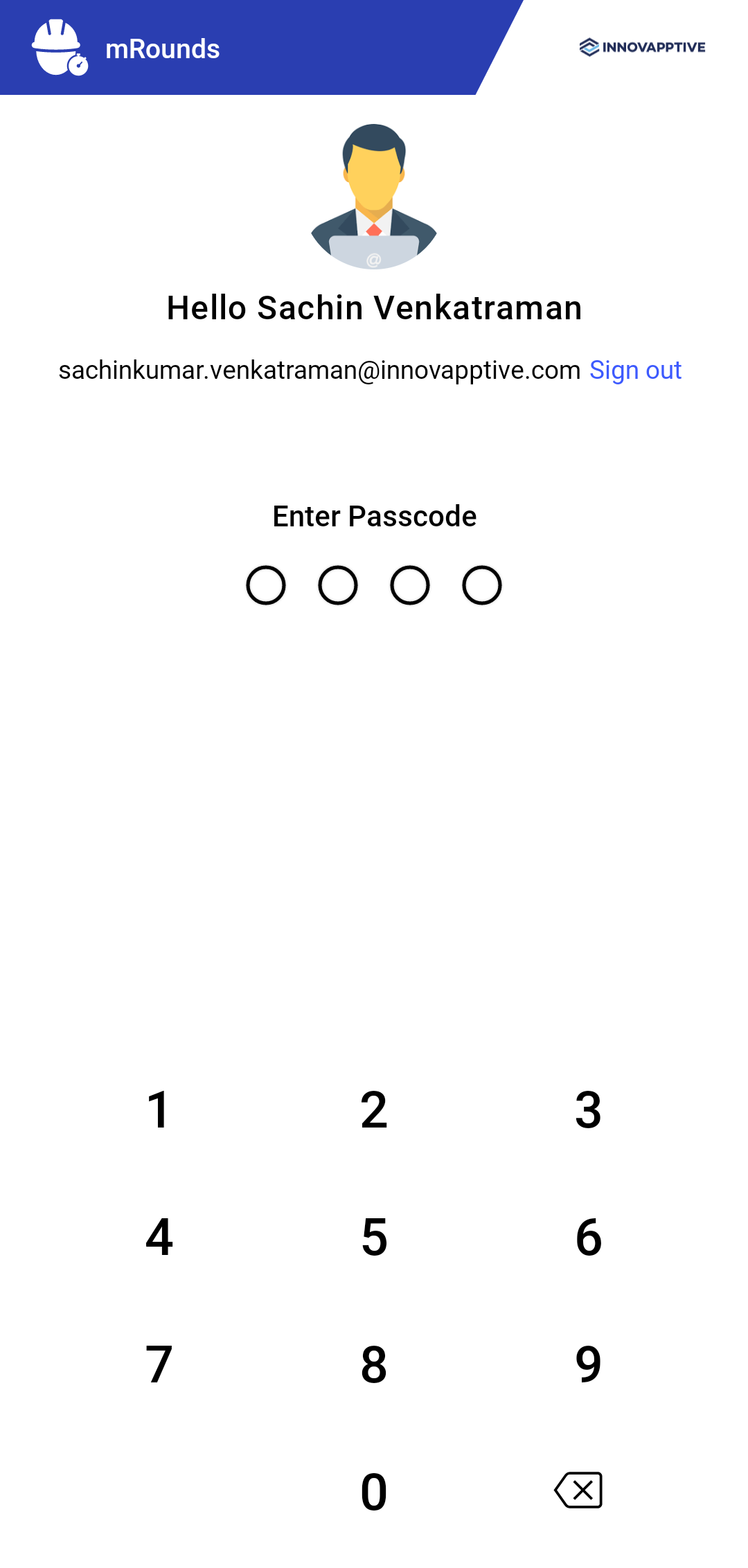
-
Create and confirm app passcodes.
Note:To disable passcode configuration, please contact the Innovapptive tenant management team.
Figure 5. Enable Touch ID or Face ID 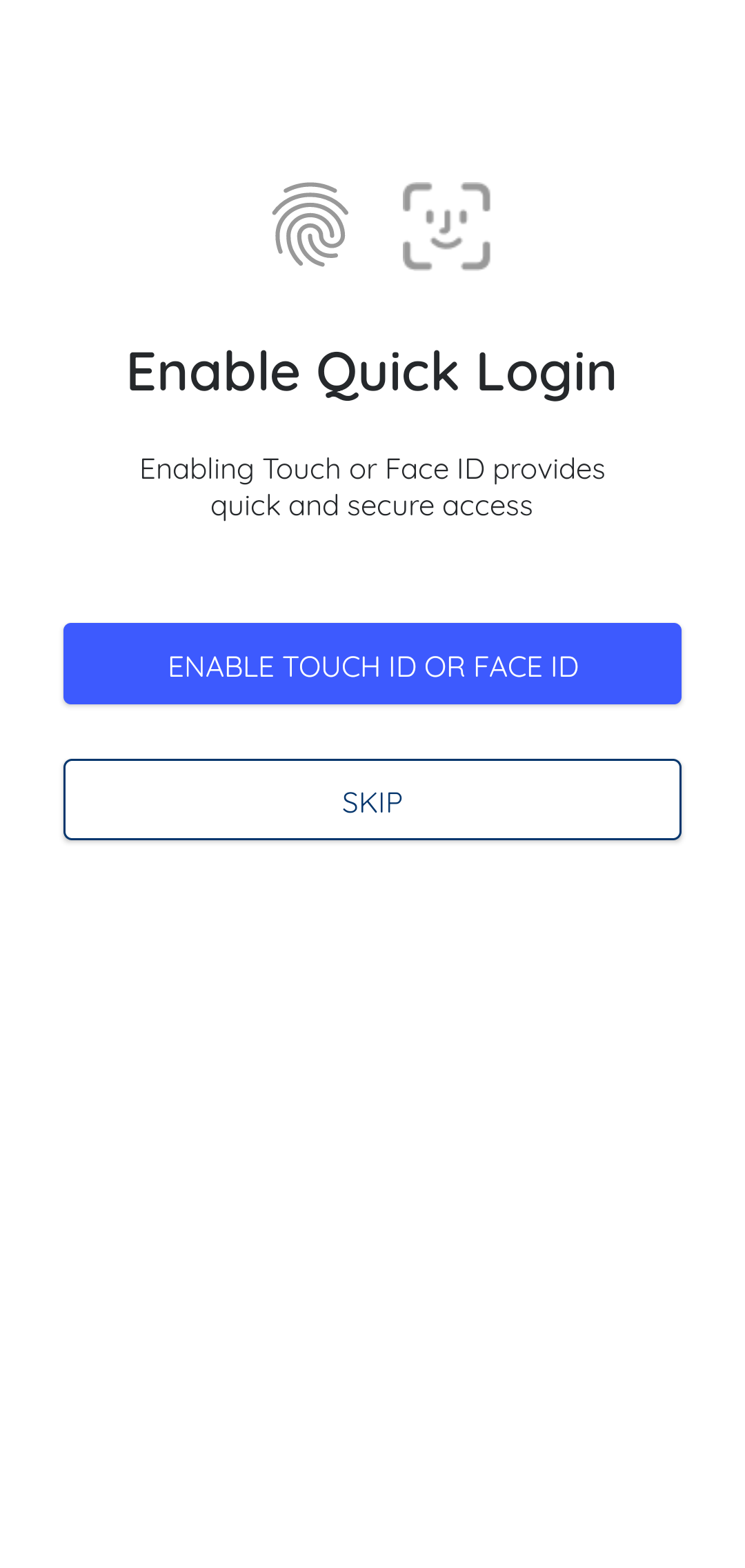
The application synchronizes data for the selected preferences and displays the Home screen.
Related task: Start Your Shift