Execute the Permit
Follow the steps below to Execute the permit:
- Open the issued permit.
- Select the required Operation.
- Click Assign to Me to assign the operation to yourself.
-
Click Start Operation.
Figure 1. Start Operation 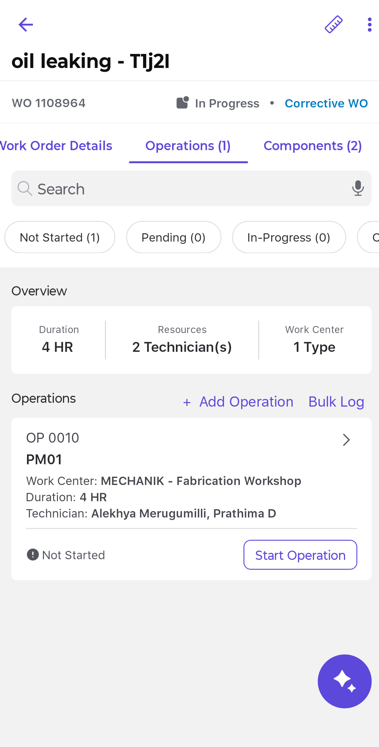
-
Click Acknowledge and answer all mandatory questions.
Figure 2. Acknowledge the Permit 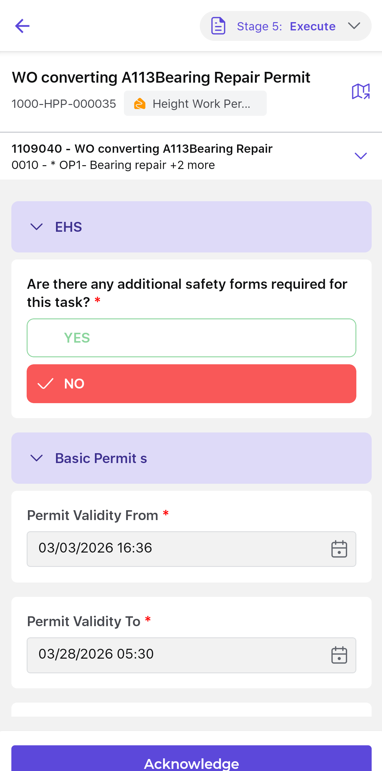
- Click Submit to provide your acknowledgment.
-
If additional personnel are required for support, choose one of the following
options:
- Add: Add personnel to the operation.
- Skip: Proceed without adding personnel.
- Cancel: Cancel the request.
Figure 3. Add personnel 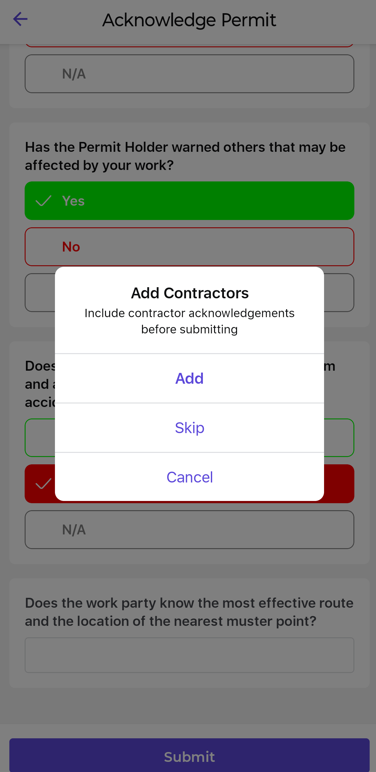
-
If adding personnel, enter the required details:
- Name
- Signature
- Click Confirm to save the details.
- Validate the required PPE, or
-
Skip if PPE validation is not applicable.
Figure 4. Validate PPE 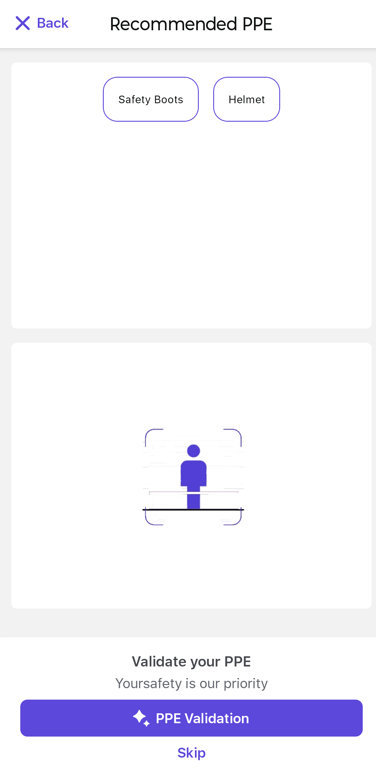
- Click Start Operation to begin the work.
- Perform the work as per the permit conditions.
- Click End Operation after completing the work.
- Click Hold if conditions require you to temporarily pause the operation.
- Click Submit to end the operation.
- Review the success message confirming that the operation is completed.
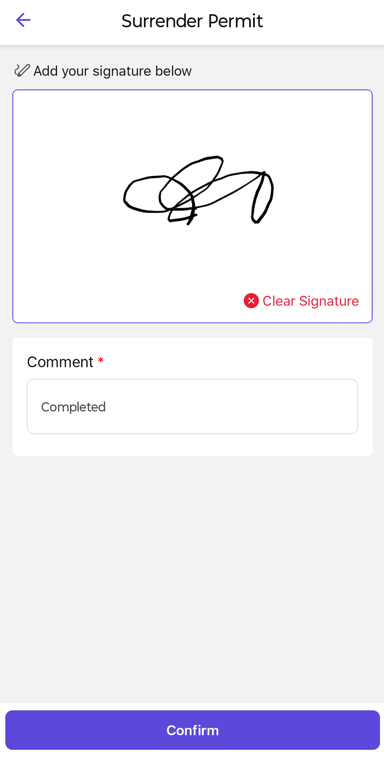
- Once the operation is complete, surrender the permit.
- Add Signature and Comment.
-
Click Confirm to surrender the permit.
Figure 5. Surrender the Permit