
Create ERP Notification for an Asset
Create an ERP notification when a round finding must enter the organization’s enterprise maintenance process for further planning or execution.
For example, during maintenance checks you observe that the bearings in a pump are not working as expected. You create an issue and convert it into a notification, and the notification number then displays in the back-end ERP system.
An Issue maps to an ERP notification when it is converted — either because the Category is Maintenance, which converts it automatically, or because Convert to ERP Notification is turned on. You can also raise a notification against an existing Issue with the procedure below.
-
Click
 and select Show Details for
the issue you want to raise the notification against.
and select Show Details for
the issue you want to raise the notification against.
or
Double-click the issue to open it.
The log history window opens.
Figure 1. Create a Notification 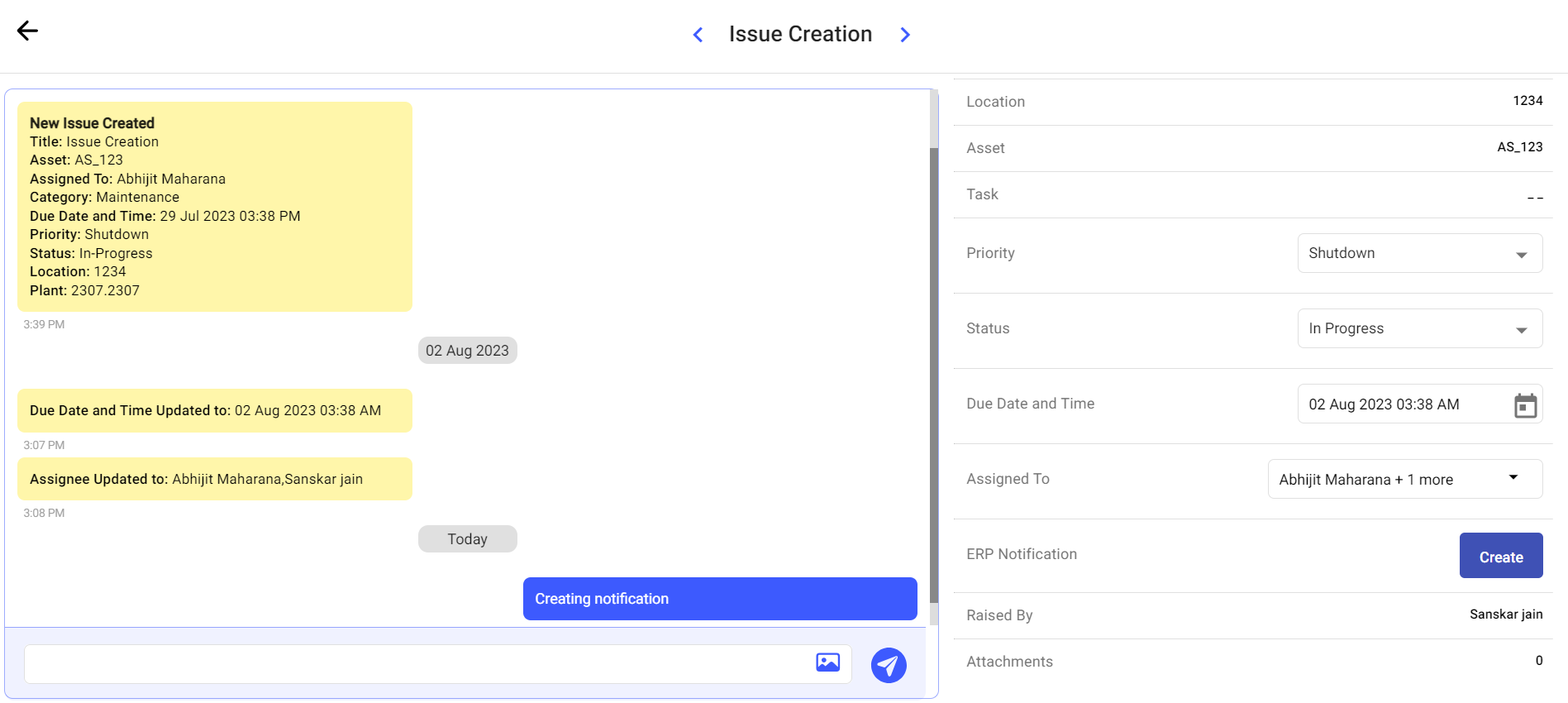
The ERP Notification request is created or the existing notification history is displayed, depending on the selected action.
What is sent to SAP
This list shows what mRounds sends to SAP when an Issue becomes an ERP notification, and which notification fields each value lands in. Nothing below happens for an Issue that stays in mRounds.
- The Priority determination values are written to the field TechInspectn by (VIQMEL-INSPK).
- The selected Risk Matrix is written into the notification Long Text.
- For Shutdown and Turnaround priorities, if you select the consequence, Impact, Likelihood and Spare availability are available and mapped to SAP accordingly.
- The Required Start date, End date, Priority and photo attachments are reflected in SAP.
- The Maintenance Plant field is mapped to the notification's Location tab.
The mapping is applied automatically. It is documented here so the origin of each value in the notification can be traced.
Plant-specific data can be viewed and executed while keeping the SAP integration consistent across plants. Custom fields, default values, help texts and auto-fill conditions are supported, so a plant that records an extra value keeps recording it without breaking the shared mapping. See Configure an Issue.
Next: Return to Investigate Rounds That Need Attention and use the available notification history to follow the enterprise-maintenance record.