
Monitor Actions
Monitor Actions to see which follow-up activities are open, in progress, overdue, or ready for review.
Use Actions to manage separately assignable follow-up activities created from inspection findings when the workflow is enabled.
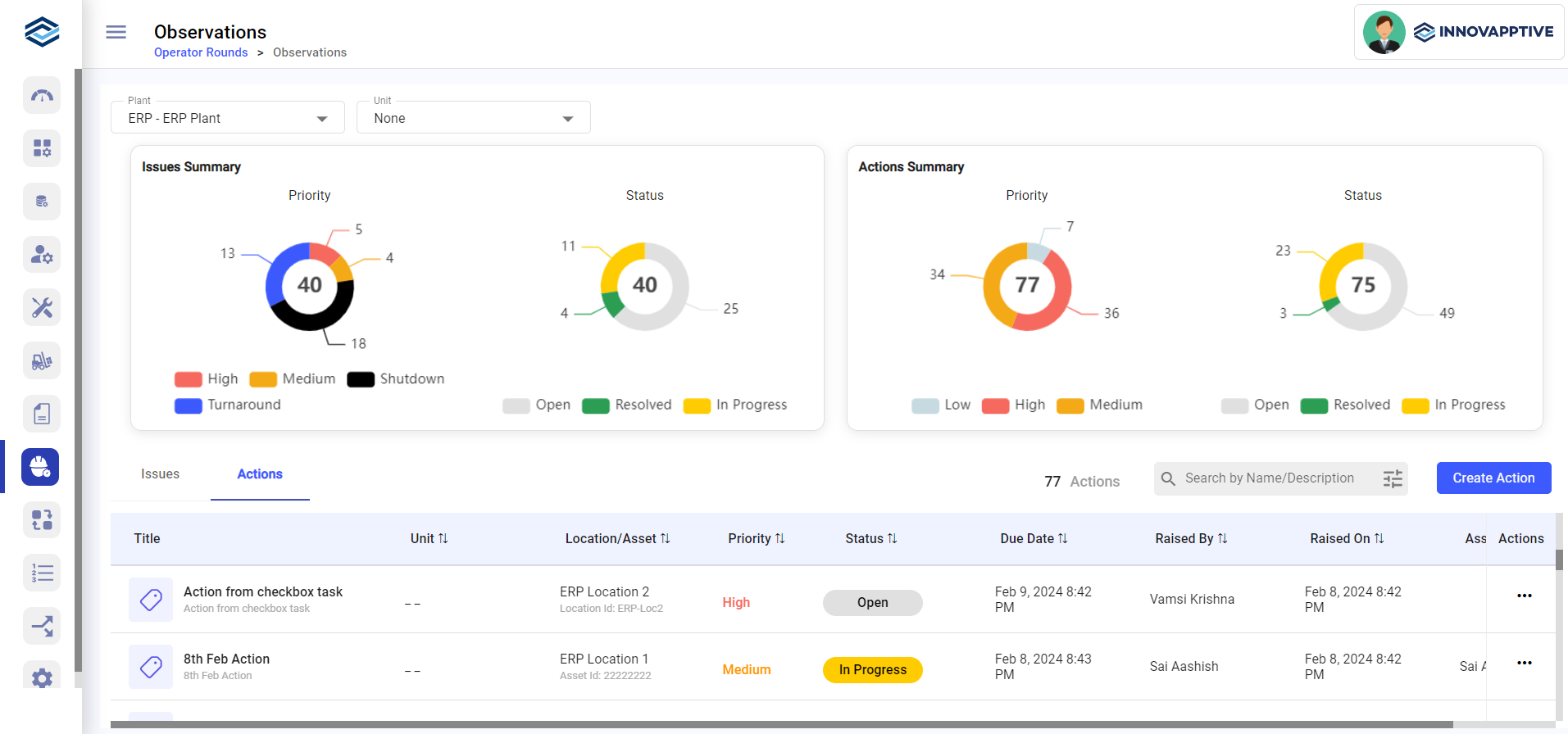
The Observations dashboard shows Open Actions as doughnut charts, grouped by priority and
status. You can filter actions by
Plant and Unit.
-
Click the Actions tab.
Sort the list by Unit, Location/Asset, Plant, Priority, Status, Due Date, Notification Number, or Assigned To.
Figure 1. View Actions 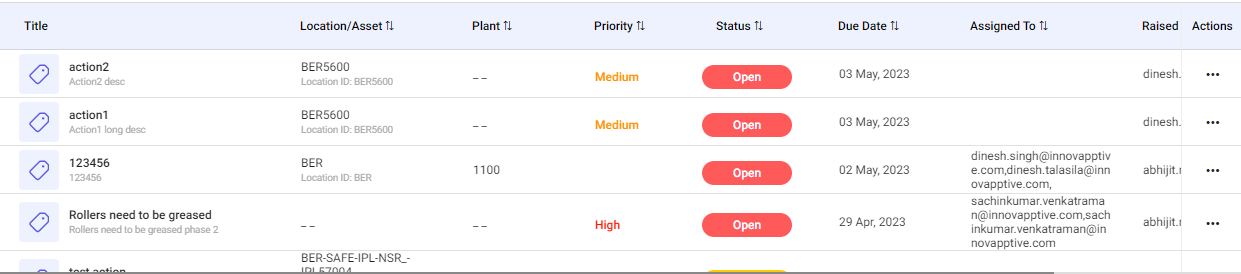
You can see the Action's priority, status, ownership, due date, and its Log History.
Next: After the outcome is recorded, use Update and Close an Action.