
View Scheduled Rounds and Their Status
Review scheduled rounds by status to see which work is open, assigned, in progress, partly open, skipped, submitted, or overdue.
The status shows the current stage of each generated round:
| Status | Meaning |
|---|---|
| Open | The round is not assigned, or it was unassigned before any progress was recorded. |
| Assigned | The round is assigned, but the Operator has not started it. |
| In Progress | The Operator has started the round. |
| Partly Open | The round was unassigned after progress was recorded. |
| Skipped | The Operator skipped the entire round and recorded a reason. |
| Submitted | The Operator completed and submitted the round. |
| Overdue | The round was not submitted by its due date and time. |
-
Click the Rounds tab.
The list shows each round's shift, Operator, status, and other scheduling details.
Figure 1. Scheduled Rounds 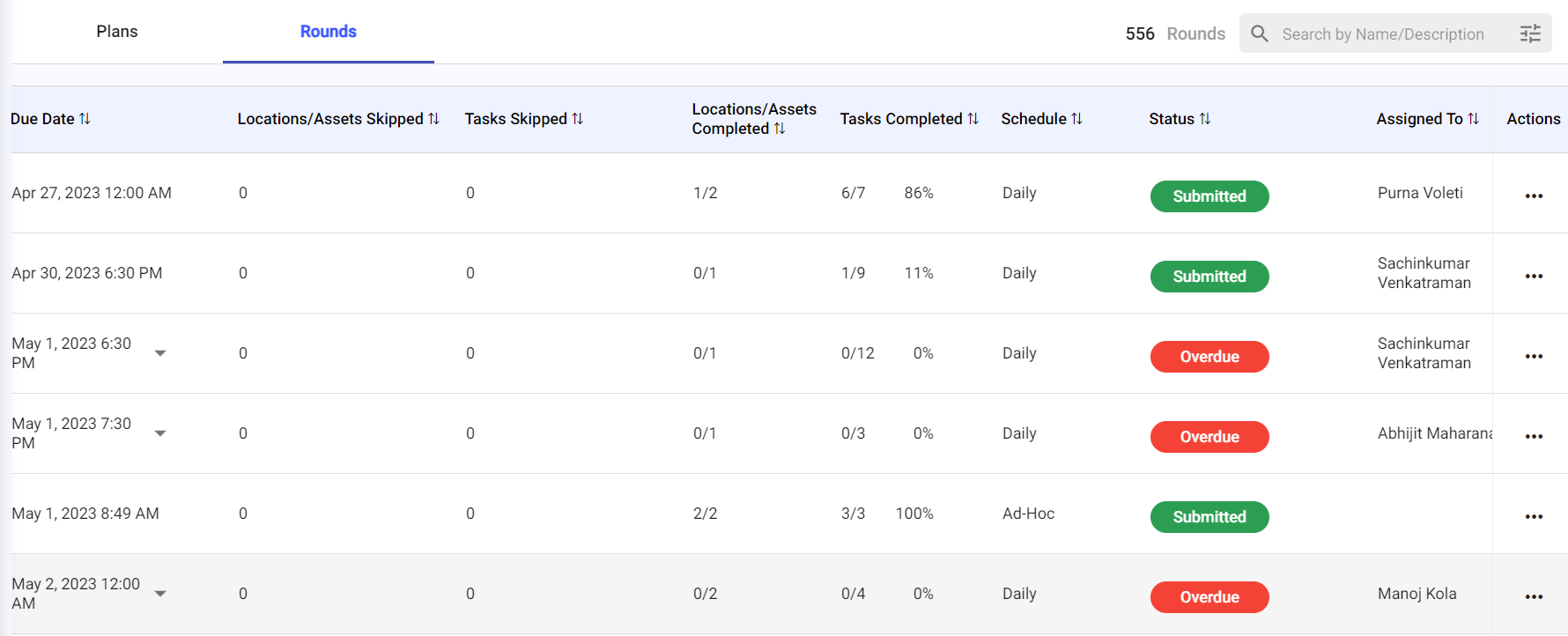
-
Select a round to review its summary.
The details include Summary, Observations, Notes, and Tasks. Each task displays Submitted by and Submitted at, indicating who last completed or updated the task and when.
Figure 2. View Scheduled Rounds 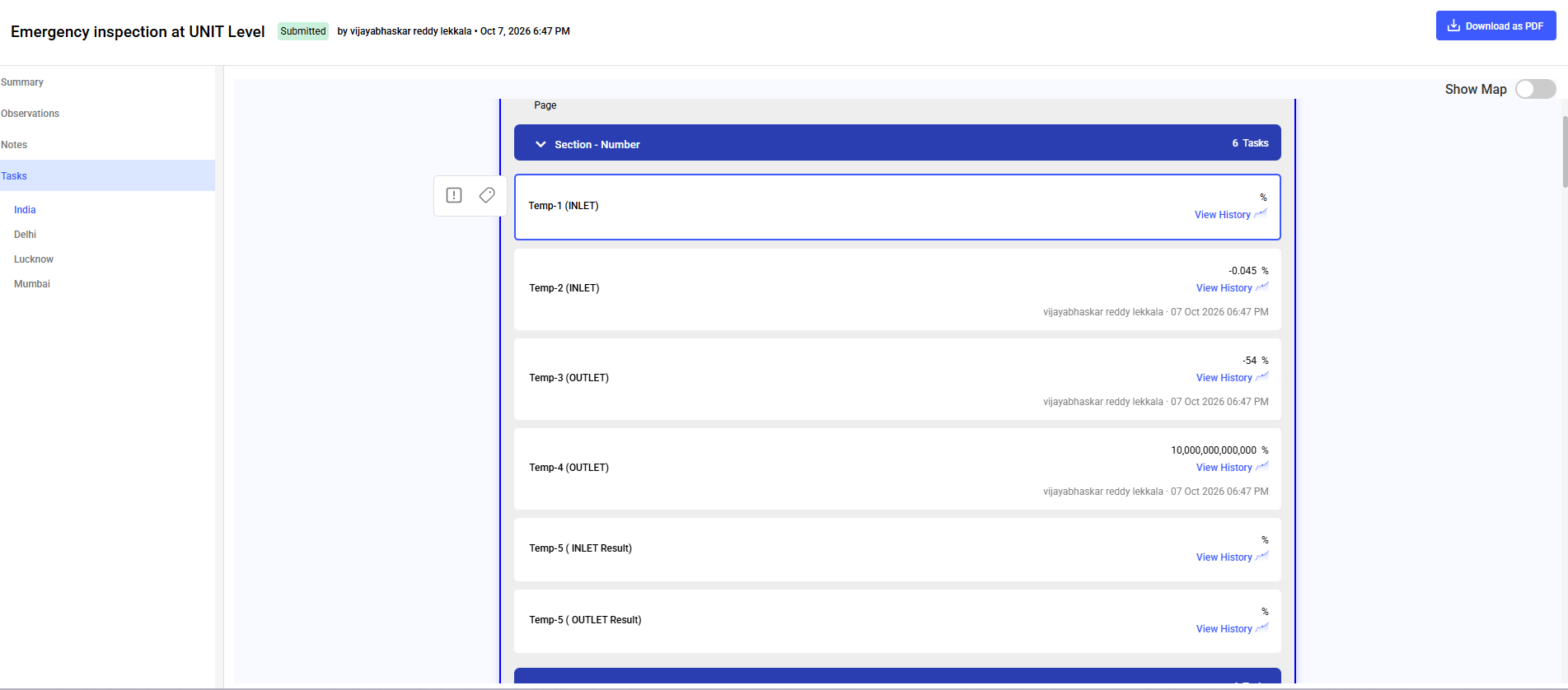
The round opens with its summary, observations, notes, and tasks, and you can download the record as a PDF.
Next: Use Review Scheduled Round Plan Details to open the plan or round, then Investigate Rounds That Need Attention.