
Print Permit as PDF
At the Issue stage, you can generate and print a PDF version of the permit for field use, compliance, or audit purposes.
To print the permit:
- Click the Print icon at the top-right of the screen.
- The Print Manager screen opens with a preview of the permit PDF.
- Select the required content options (for example, Permits, Evidences, Attachments, Signature).
- Use the annotation tools available in the toolbar to highlight or mark important sections, and adjust color, thickness, or opacity if required.
- Click Print Document.
-
Print the permit and provide it to the field team for reference or compliance
documentation.
Figure 1. Print Permit 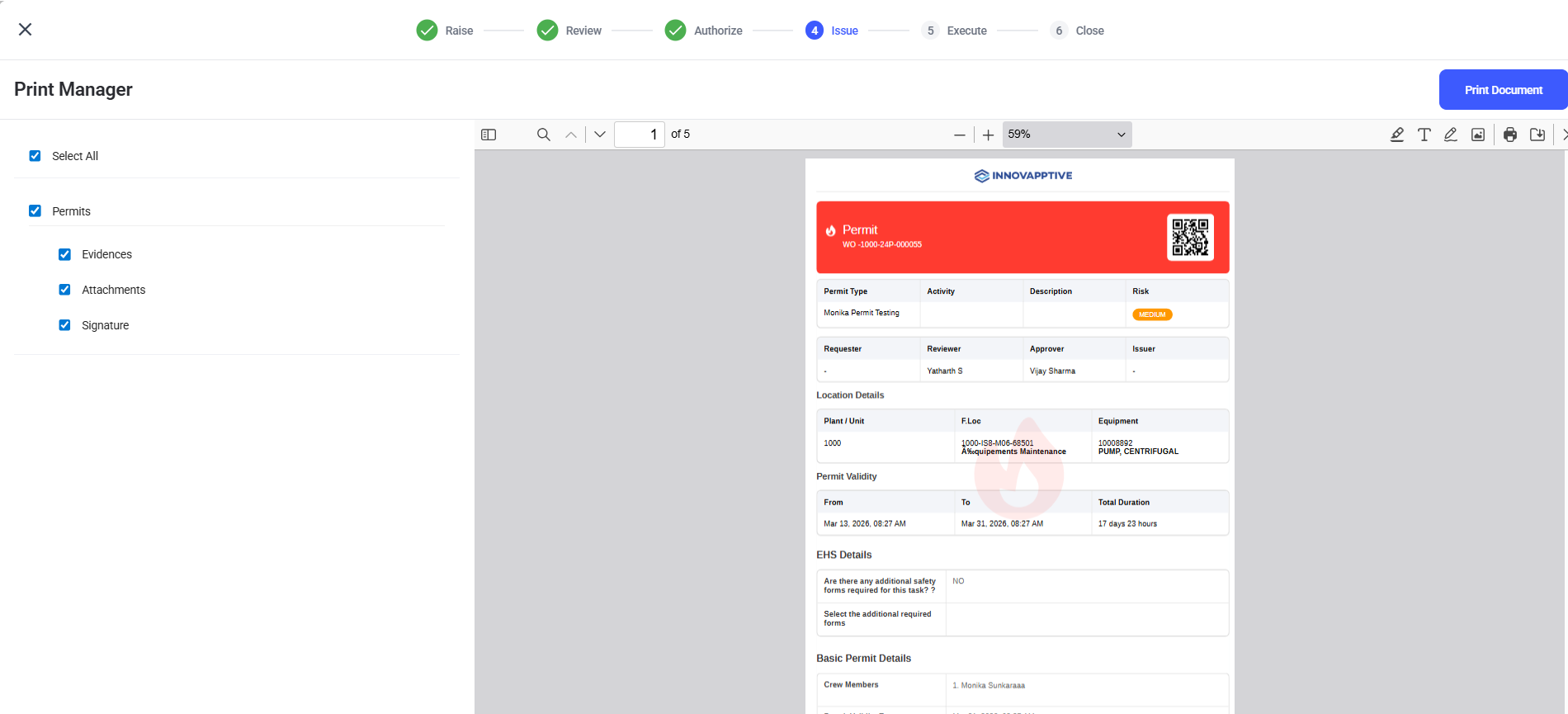
Note:The generated permit PDF includes a QR code that can be scanned using the mobile application to quickly access the permit details in the field.