
Raise a Permit
Permits can be raised in the following ways:
- Raise Permit Manually
- Raise Permit using AI
- Standalone Permit (without a work order)
Both options follow the same lifecycle after creation.
Raise Permit Manually
To raise a permit manually, follow the steps below:
- avigate to EHS → Permits from the left navigation panel.
-
Select the required plant from the dropdown.
Note:The Plant dropdown shows only the plants assigned to the logged-in user. - Click Raise Permit Manually.
Figure 1. Raise Permit Manually 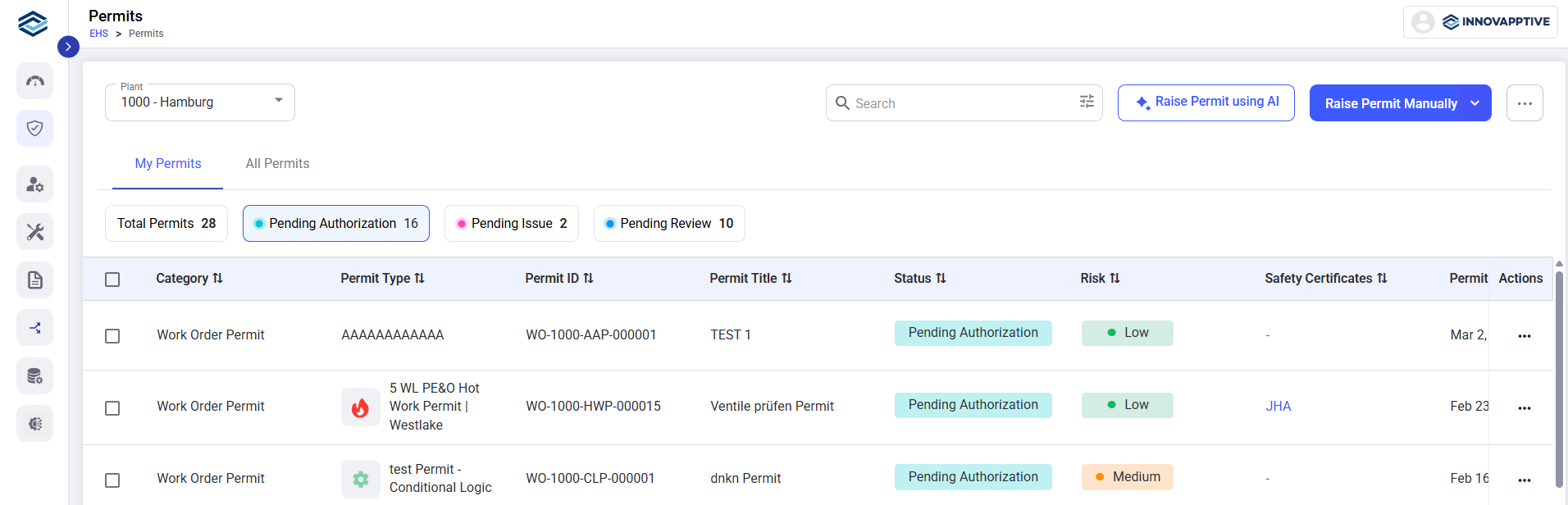
- Select the required Work Order / operation for Work Order/Operation–based
Permit.Tip:
- Use operation-level permits when different operations within the same work order require different permit types (for example, electrical vs mechanical work).
- Use a single permit for multiple operations when all operations require the same permit type.
- Use filters such as time period, work center, functional location, priority, work order type, and created by to quickly find the required work order or operation.
- Enable Combined Permit to raise one permit for multiple operations under the same Work Order. Click Continue.
- Click Continue.
Figure 2. Combined Permit 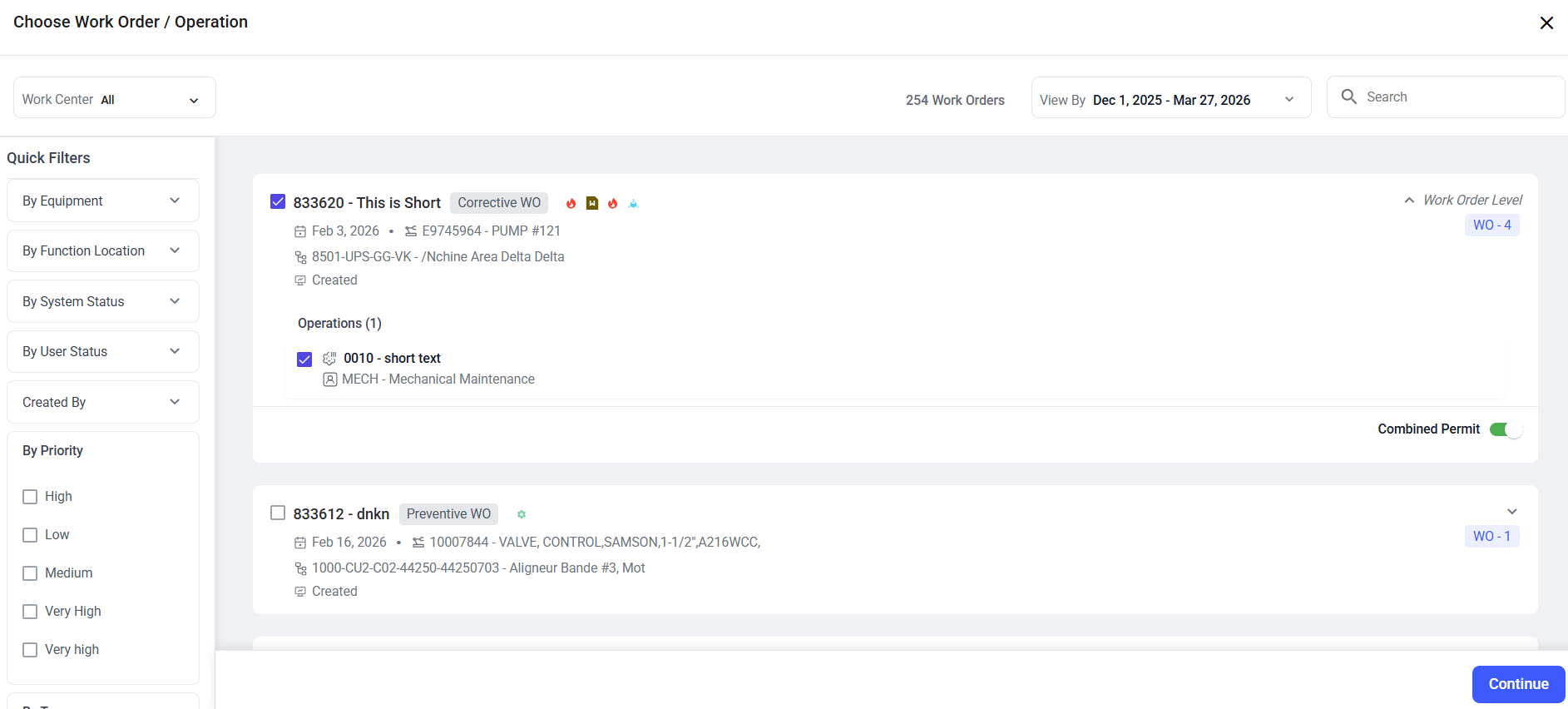
- Select the required Permit Type in the Select Permit Type screen.
- Enable the Consolidated Permit option to combine multiple permit templates (for example, Hot Work and Electrical) into a single consolidated permit.
- Click Proceed.
Figure 3. Select Permit Type 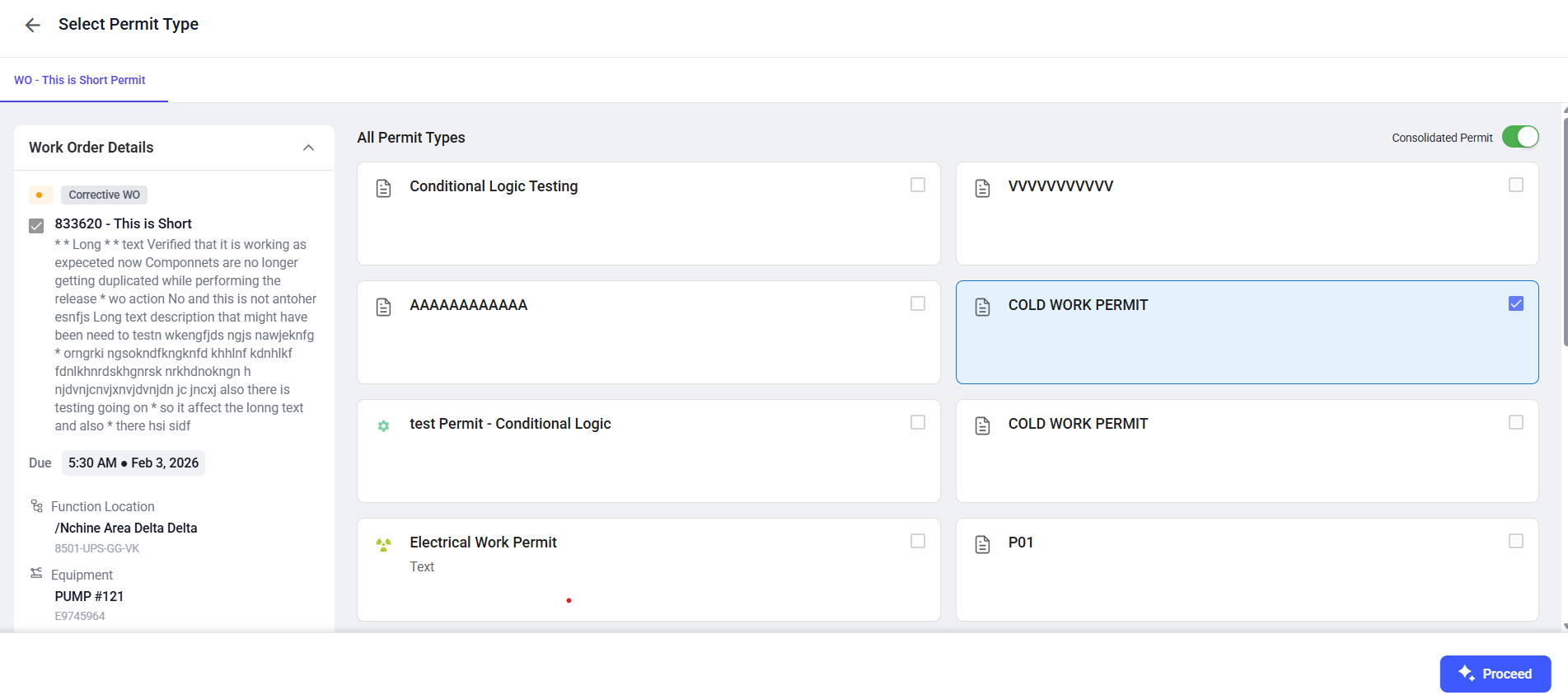
- Fill the mandatory fields required to raise the permit:
- Select Yes if additional safety forms are required for the task.
- Select JHA if the permit requires a Job Hazard Analysis.
- Permit Validity, Risk Level, and Crew Members
fields are auto-populated from the Work Order and can be updated
by the Requestor before submission.Note:The Permit Validity From date cannot be set to a past date. Users can only create or update permits with the current date or a future date.
- Select the required Personal Protective
Equipment (PPE) from the dropdown (for example,
safety goggles, gloves, safety shoes etc.).
Figure 4. Fill Details 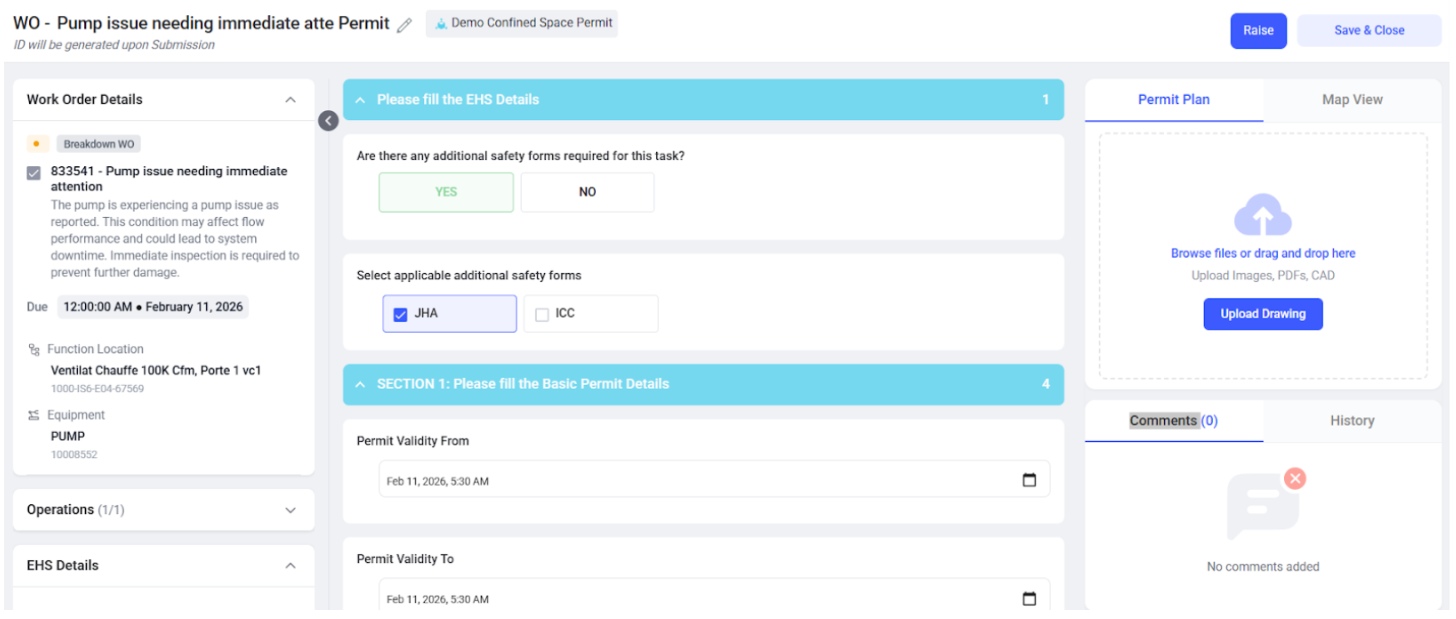
- Review the fields displayed based on the selected Permit Type template.
- Provide the required permit details as defined by the selected template.
Note:The fields required to raise a permit vary based on the Permit Type selected. Each permit template defines its own set of mandatory sections, questions, and validations.
For details on how permit templates and their fields are configured, refer to the Create and Manage Templates section.
- Click Raise to submit the permit.Note:If you select that JHA is required while raising the permit, a request to raise the JHA is sent at this stage.