
Raise Standalone Permit
Standalone permits are typically used where no Work Order exists, or where the work is tracked outside iPermits — for example, work from a contractor, an emergency repair, a facility task or an inspection. Risk is associated directly with the equipment or functional location you select
To raise a Standalone permit, follow the steps below:
- Navigate to EHS → Permits from the left navigation panel.
- Select the required plant from the dropdown.
-
Click Raise Permit Manually and select Raise
Standalone from the dropdown.
Figure 1. Raise Standalone Permit 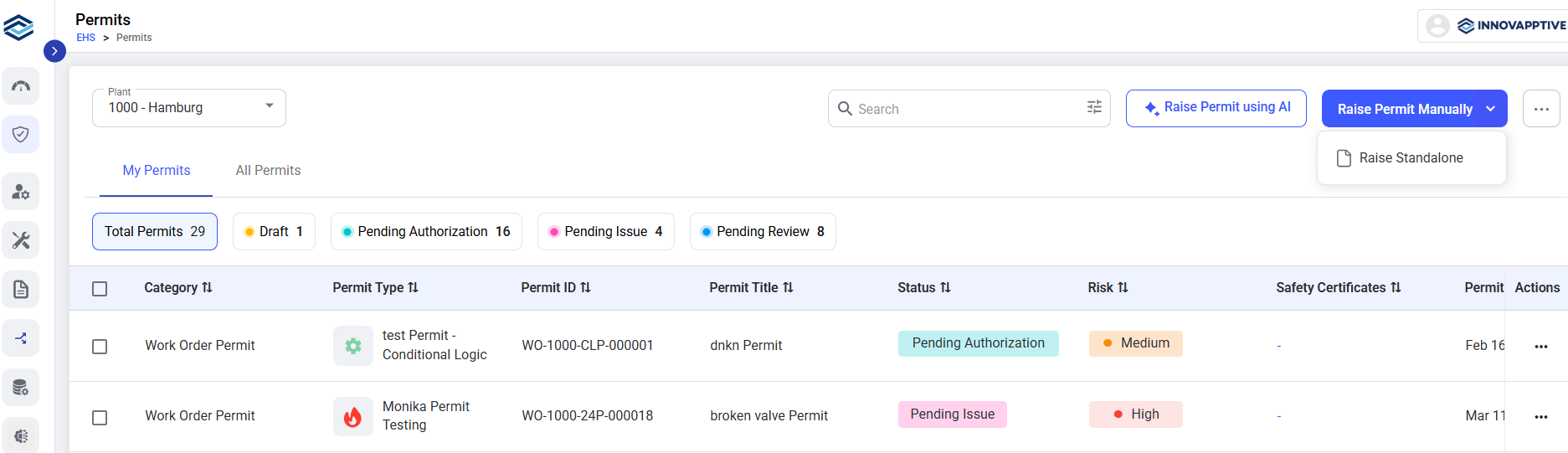
- Select the appropriate Functional Location where the work will be performed to link the permit to the correct plant area or system.
- Select the specific Equipment associated with the chosen functional location on which the activity will be carried out.
- Define the type of work to be performed (e.g., inspection, maintenance, repair, hot work) to ensure accurate risk assessment and approval workflow.
-
Click Continue.
Figure 2. Enter Details 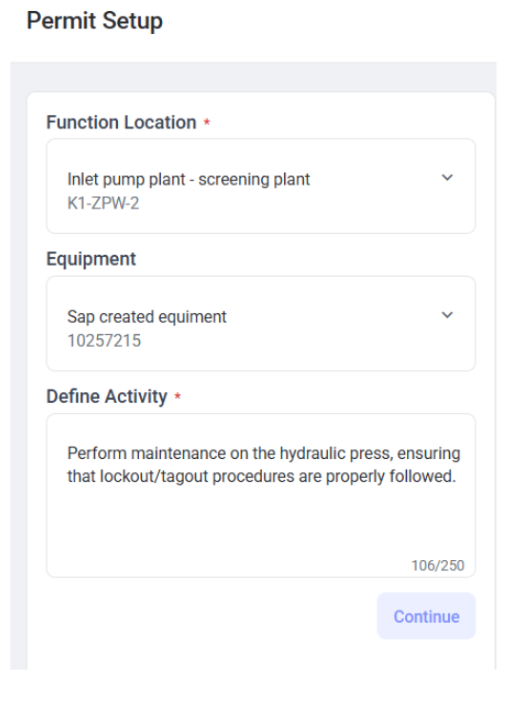
-
Select the Reference Type from the dropdown.
- Work Order or,
- Other
Note:Select Other when there is no work order dependency. For example, a contractor job, a ticket or job number from an outside system, facility or utility work, operational work, urgent emergency work, or a manual maintenance request. A permit raised this way never needs a Work Order. - If you select Work Order, Continue with the Steps 4 through 12 from Section Raise Permit Manually to complete the permit raise process.
-
If you Select Other:
- Enter a short note in the Reference Id field. For example, a contractor job number, a ticket number, or the name of the activity.
- If you select Work Order, Continue with the Steps 4 through 12 from Section Raise Permit to complete the permit raise process.