
Create an Ad Hoc Round
Create an ad hoc round when urgent or unplanned work must be generated from an available plan without waiting for its regular schedule.
-
In the Plans tab, click
 and select
Create Ad Hoc Rounds for the selected round.
and select
Create Ad Hoc Rounds for the selected round.
-
Fill the scheduling details.
Note:You can update only the Shift and Slot details.Tip:If you set the Due Date more than 24 hours out, the ad hoc round carries over to next shifts automatically and remains available until it is submitted or becomes overdue.
Figure 1. Create Ad Hoc Round 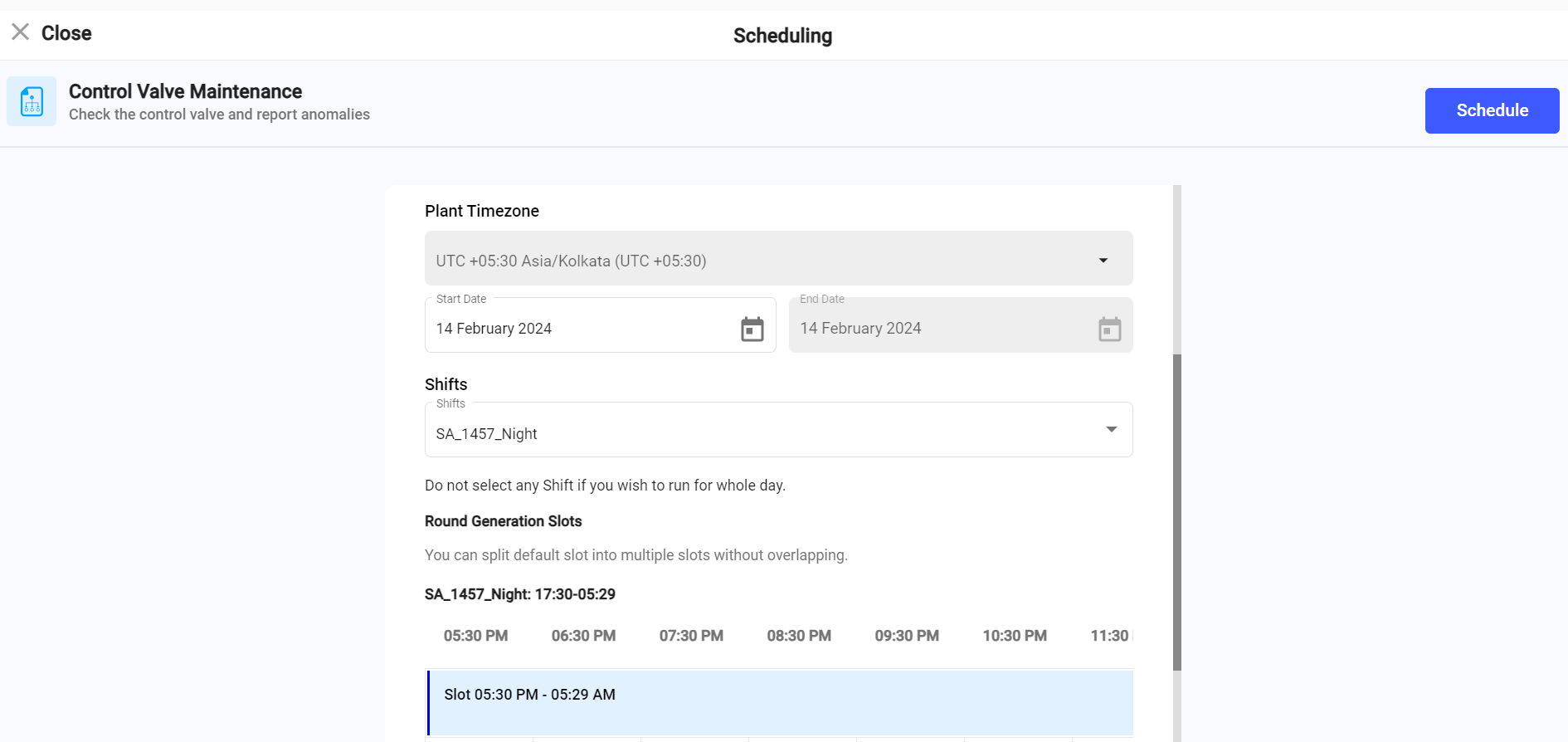
The ad hoc round is scheduled and is available from the Scheduler for monitoring.
Next:Monitor the generated ad hoc round with the other active work.