Create a repeating schedule when the round must run daily, weekly, monthly, or yearly. The schedule controls future round generation.
Expand the Operator Rounds module and click
Scheduler on the left pane.
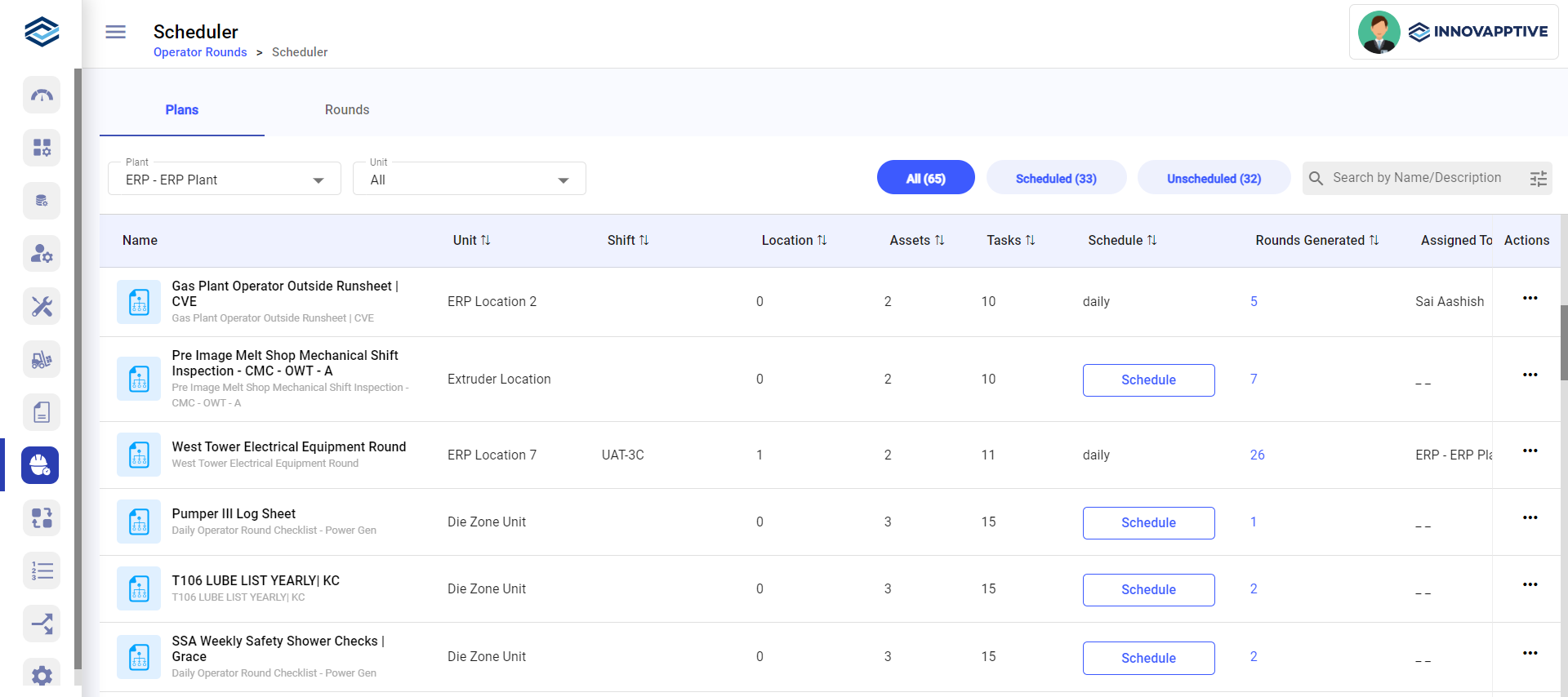
In the Plans tab, click Schedule
on the round plan and select Header Level.
Or click the More icon and select Schedule >
Header Level.
Figure 1. Schedule Rounds Screen
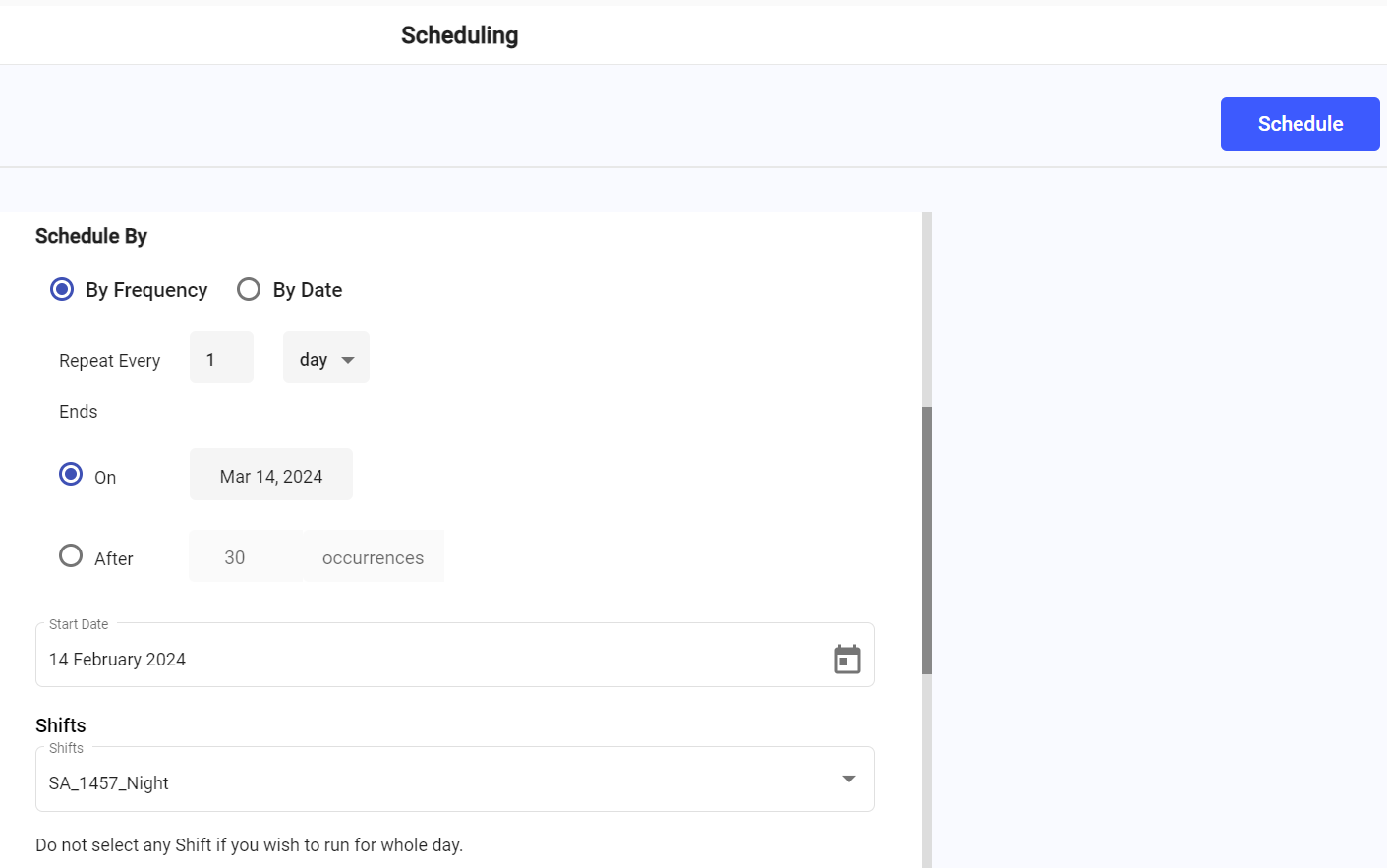
In the Header screen, choose the By
Frequency radio button.
Figure 2. Schedule Rounds by Frequency
In Repeats Every, set the interval and unit (day, week,
or month).
For example, 10 + day runs the round every 10 days; 2 + week or 2 + month runs
it every 2 weeks or every 2 months.
For a specific weekday each month — for example, every Monday — mRounds adjusts
automatically at month boundaries:
If the month starts on a Thursday, the first scheduled Monday is the
first full week's Monday.
If the month ends on a Sunday, the last scheduled Monday is the
previous full week's Monday.
No manual fix is needed for these calendar edge cases.
Select when to end the schedule: Ends On <Date> or
Ends After <number> Occurrences.
In Start Date, select when the schedule begins.
The recurrence pattern is set.
In Assigned To, choose Plant,
Unit, Position,
User, or User Group.
Choose Assigned To before the shift: it decides which shifts you can pick, and changing it later clears the Shift and Slot fields.
Time boundaries: Set the shift, execution slot, and allowed buffer so Operators know when the round is due and how long they may submit after the planned time.
In Shifts, select the relevant shift for the round.
Shifts can be configured independently at the Plant, Unit, or Position level.
The available shifts are filtered by your Assigned To
selection:
Plant — Plant-level shifts.
Unit — the unit's shifts, or Plant-level shifts if none are
configured.
Position — the position's shifts, or Plant-level shifts if none
are configured.
User / User Group — all available shifts.
Note:
If no shift is selected, the round is generated by
frequency alone and stays valid for the entire day until 23:59, becoming
overdue if not submitted by then.
Note:
Changing Assigned To after
choosing a shift clears the Shift and Slot fields — reselect them before
clicking Schedule.
Select a slot within the chosen shift.
How many slots are available depends on whether the plant has shifts
configured:
No shifts configured — the full day (00:00–23:59) is the default slot
and can be split into up to 24 slots of at least one hour each.
Shifts configured — each shift can be split into up to 8 slots of at
least one hour each.
Slot times must not overlap and do not need to match the shift's start or end
time exactly.
To delete a slot, click the More icon and select
Remove.
Select Allow Buffer Time to give Operators extra time
past the scheduled end time to submit.
Enter a buffer for the planned start time, the planned end time, or both. For
example, an 8-hour shift with a 30-minute end buffer lets the Operator submit
up to 8:30.
Enter the Round Duration.
The round's time boundaries — shift, slot, and any buffer — are set.
Assignment and generation: Assign the scheduled work and define how far in advance rounds are generated. These settings determine who can see the round and when it becomes available.
In Rounds Generation, select how many days of rounds to
generate in advance.
For example, a plant with 3 shifts and 2 slots per shift, with
Rounds Generation set to 1, generates 6 rounds for
today and 6 for tomorrow — 12 in total.
Note:
A round that is not submitted before its slot or shift ends becomes
overdue, based on the plant's configured time zone. Set the mobile device
to the same time zone as the plant configured in the web application,
because slot start and end times mark the round's lifecycle.
Click Schedule.
A "Round has been scheduled successfully" message appears. Click
View Rounds to see round details, or
Close to dismiss.
The round plan is scheduled and rounds begin generating for assigned operators
according to the configured lead time.