Use a specific-date schedule for checks that must occur on selected calendar dates rather than follow a repeating frequency.
-
Expand the Operator Rounds module and click
Scheduler on the left pane.
-
In the Plans tab, click Schedule
on the round plan and select Header Level.
Or
Click the More  icon adjacent to the round plan that you want
to schedule and select Schedule > Header
Level.
icon adjacent to the round plan that you want
to schedule and select Schedule > Header
Level.
-
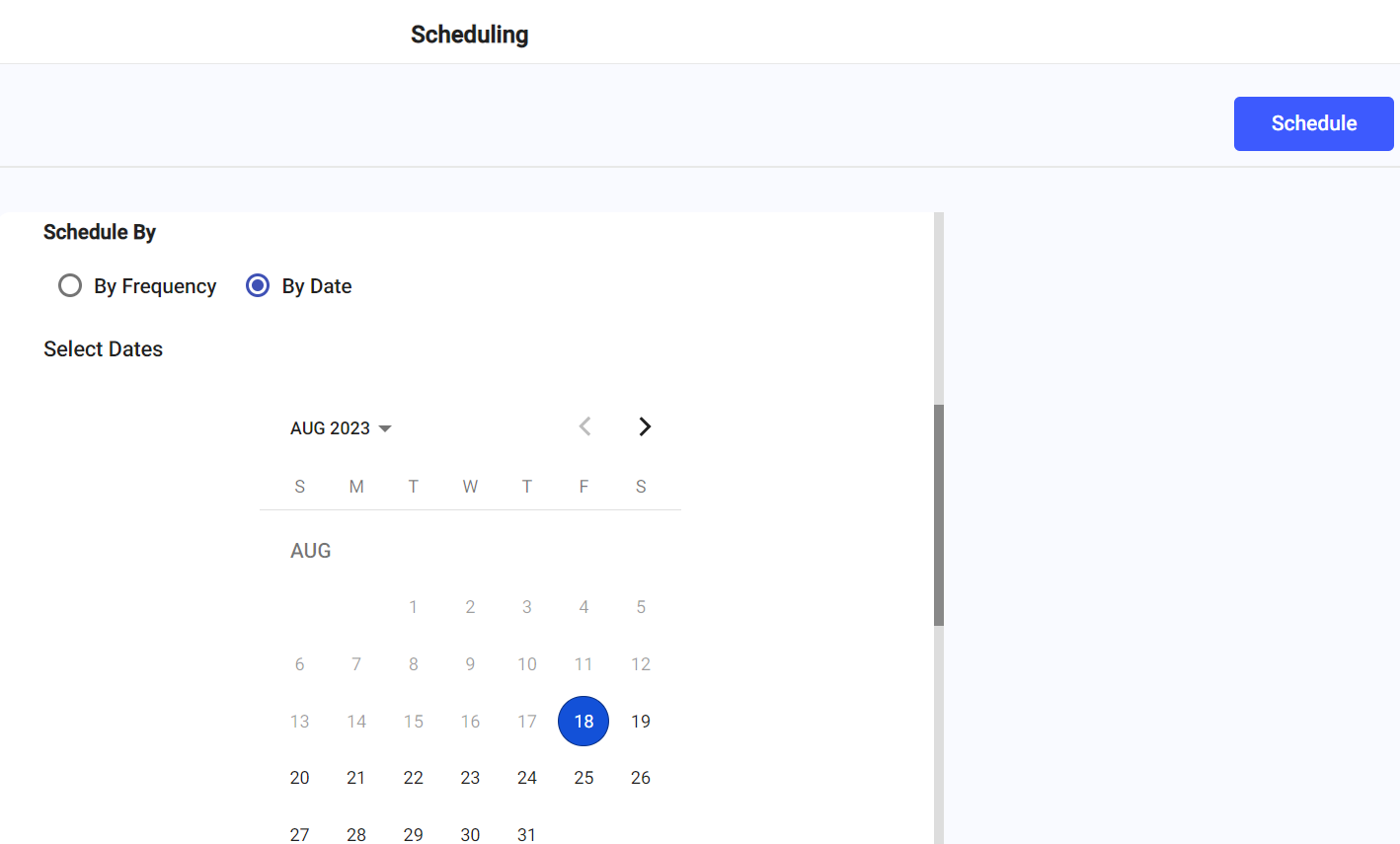
In the Scheduling screen, choose the By
Date radio button.
Figure 1. Schedule Rounds by Date
-
Select the date from the calendar.
-
In the Assigned To field, choose who the scheduled round
is assigned to.
- Choose the Plant radio button and select the
name of the plant from the drop-down.
- Choose the User radio button and select the name
of the operator from the drop-down.
- Choose the Unit radio button and select the
specific unit or functional location from the drop-down.
- Choose the Position radio button and select the
name of the position from the drop-down.
- Choose the User Group radio button and select
the name of the user group from the drop-down.
Choose Assigned To before the shift: it decides which shifts you can pick, and changing it later clears the Shift and Slot fields.
-
In the Shifts drop-down, select the relevant
shift.
-
Select slots for the selected shift.
-
Select the Allow Buffer Time check box to add buffer
time for round execution.
- Select and enter the buffer time for the planned start time.
- Select and enter the buffer time for the planned end time.
For example, an 8-hour round shift with a 30-minute buffer lets the user
submit the round up to 8:30 — past the scheduled end time.
-
Enter the Round Duration time.
-
In the Rounds Generation drop-down, select the number of
days you like to generate rounds at a time in advance.
-
Click Schedule.
A message "Round has been scheduled successfully" appears. Click
View Rounds to see round details or click
Close to close the pop-up.
The round plan is scheduled for the selected date and the generated round is available for review.
Next:Monitor the generated round and review any work that needs attention.
